Development journal / SimpleSortSlim
SimpleSortSlim development journal: you decide which photos stay
From Mac to iOS: the story behind SimpleSortSlim's filters, album management, similar-photo comparisons, and Live Photo conversion, saving space while leaving the decisions to you.

Organizing photos and videos has been a problem for as long as we have had camera phones. Device storage is always finite, and online storage means a monthly bill. Moving up a cloud-storage tier can add a substantial fixed cost. Meanwhile, our collections keep growing, and going through the whole library manually is unrealistic. What can we do?
Where the idea came from
I have 54,334 photos and 2,695 videos in iCloud, which I imagine is fairly typical for a longtime iPhone user. A friend avoids iCloud but buys a 1 TB phone to hold everything. Deleting all the photos is not an option: the memories would disappear too. Nor do I want to trust a fully automatic tool that says “all organized” only to discover that meaningful photos are gone. That kind of disaster used to happen often without cloud storage—or, more precisely, without version history.
I made SimpleSortSlim for people who take their photos seriously. They do not want meaningful images deleted by mistake, but they do want to remove unwanted material, free up space, and reduce storage costs.
It began as a tool for my own use on the Mac. As I used it, spending a few seconds a day—or a minute a week—on tidying photos became a healthy routine. I then brought it to the phone, which is how the iOS version came about.
What the app does
The Mac version
The icon is a rather goofy bear, fitting the Chinese name, which roughly means “simple-minded sorting.” The first version was indeed very simple: it added a filtering stage before manual review. The range of filters, however, was comprehensive and powerful.
Reviewing photos
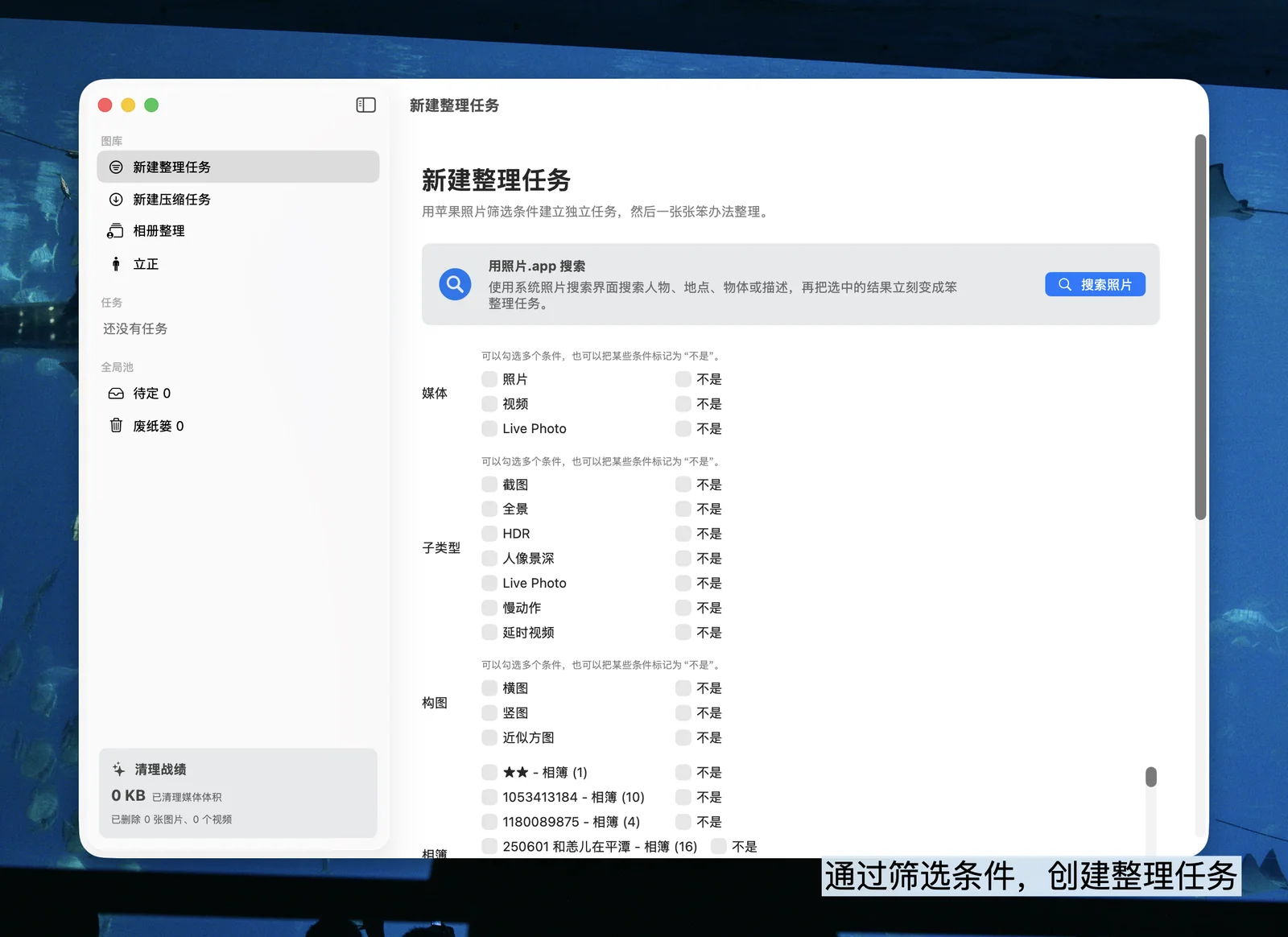

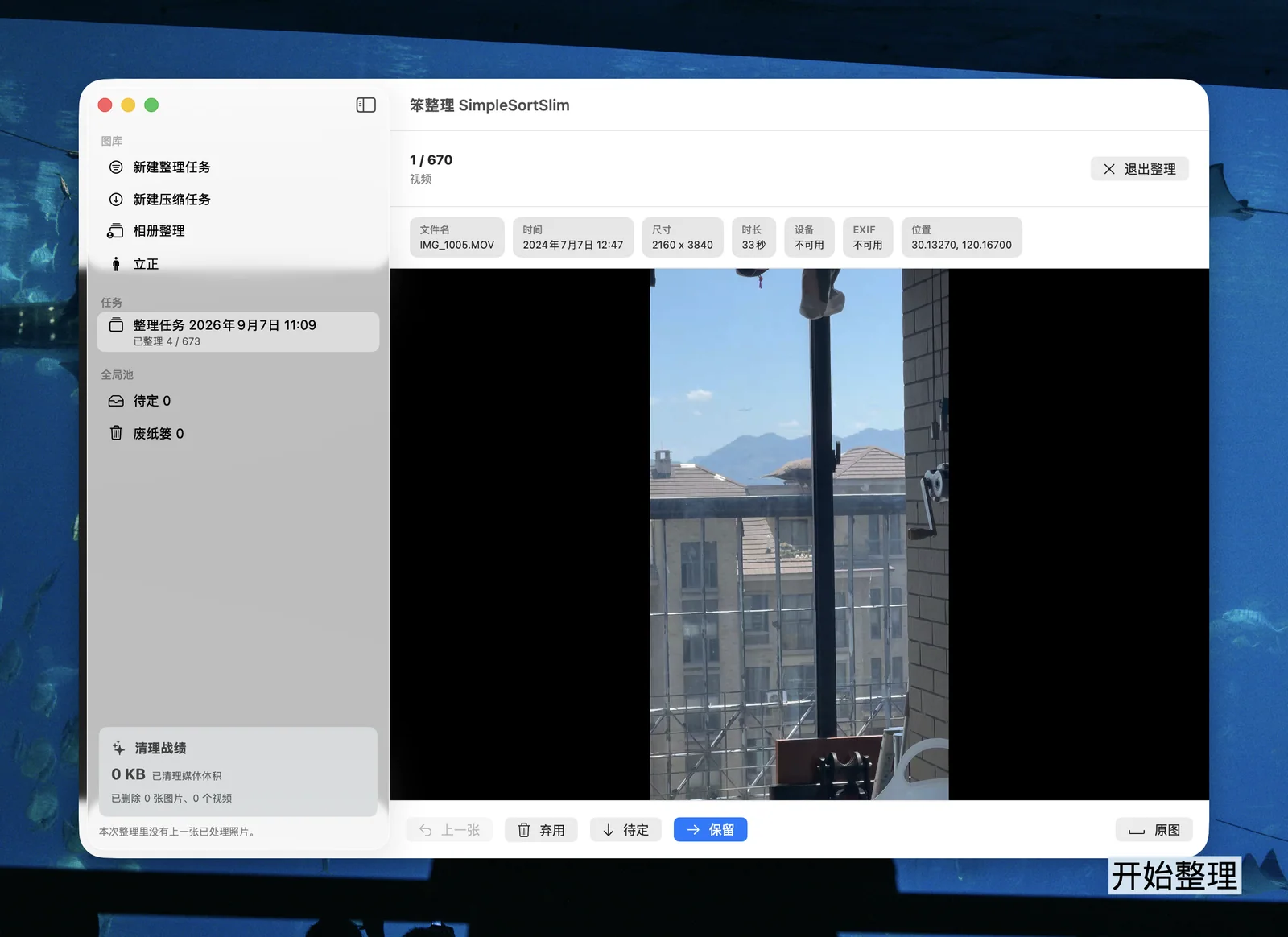
Filter photos, then start reviewing. Keyboard shortcuts make it quick: the right arrow keeps an item and moves on; the down arrow sets it aside in a dedicated area for another look; Delete marks it for deletion. Deleted items still go into a trash area for confirmation. I borrowed ideas from the review consoles used by internet content-moderation teams to make the process as efficient as possible. Reviewing pictures can feel almost mindlessly relaxing. I also added preloading for smooth browsing. With a decent connection, it feels local—smoother, in my experience, than opening originals downloaded from iCloud in Photos.
Organizing albums
Create a task for one album and review only that album's contents. If you often use camera apps such as Dazz, Fimo, or PhotonCam, their photos may be grouped together, making it convenient to focus on that collection.
Filter and delete albums. Filter by name or photo count, including finding empty albums. You can also delete an album together with the photos it contains. That is an option I missed in Apple's Photos app: deleting an album normally leaves its photos in the main library, when I often wanted to remove the contents as well.
Move albums. Move an album under another album or folder.
Straighten Up
Make the photos stand upright! This is an algorithm that checks whether a photo is rotated correctly and straightens it. In my testing, it was almost 100% accurate for things photographed on a table, such as food, and somewhat helpful for images containing text. Other types of photos produced some false positives.
Those were the Mac features. Development then shifted toward iOS. Alongside bringing those features to the phone, I added several things I was especially excited about.
The iOS version
Comfortable review controls
On the review screen, drag a photo or video toward the screen's edges to keep it, delete it, or add it to favorites. You can also tap the buttons for a quicker, less tactile approach.

Smart Review
Smart Review is the biggest update to the iOS version of SimpleSortSlim. It uses a few rules and algorithms to assess images, limiting the manual review queue to lower-value candidates, such as screenshots and images that were downloaded or generated rather than taken with the camera. For camera photos, I reused the deduplication approach from Always9Pics to group similar pictures for comparison. Delete those you do not value, keep the best one, or keep them all. The decision is yours; I just make comparison easier.
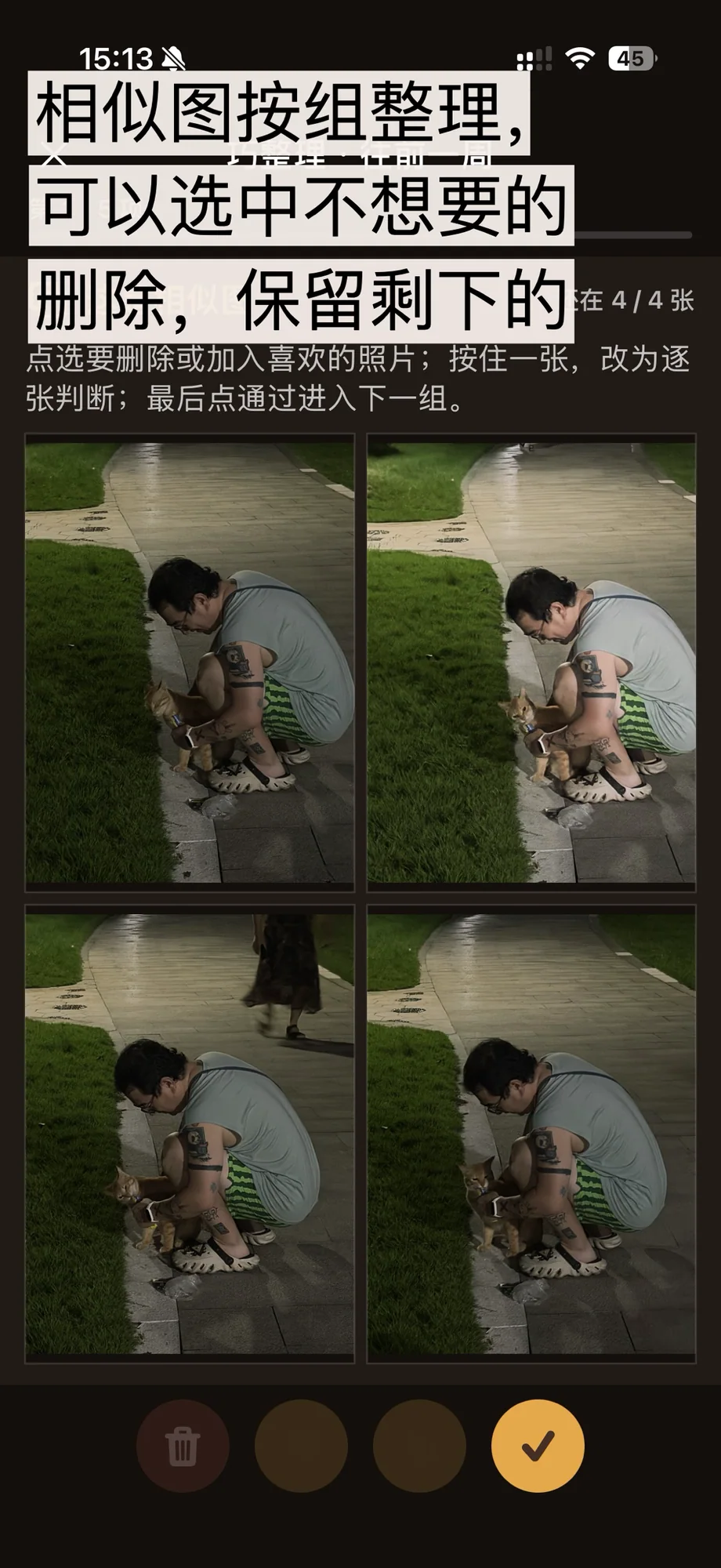
After many days of testing, Smart Review made the daily photo-tidying routine much easier. The similarity grouping also helped make my library feel genuinely clean and uncluttered.
Turn Live Photos into still images
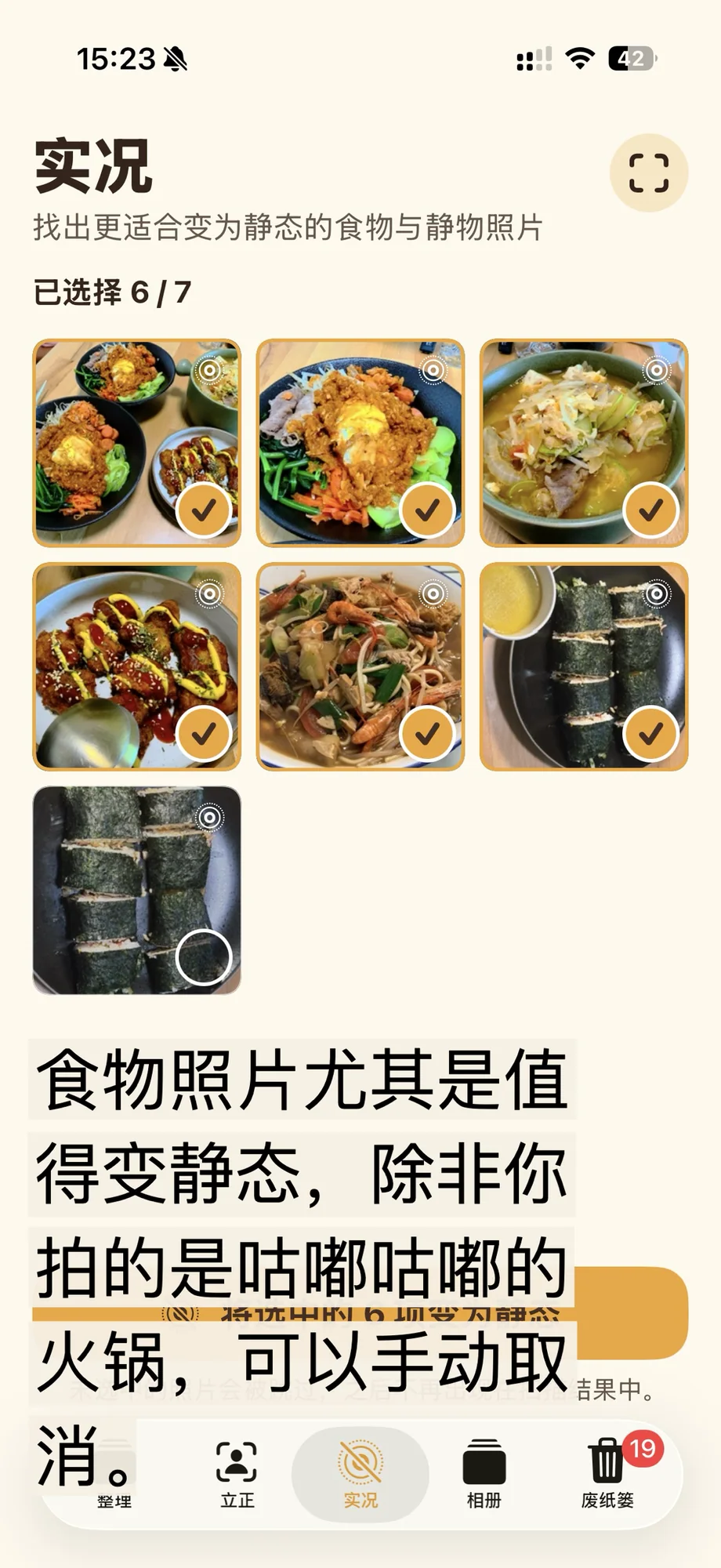
This feature uses Vision to identify still-life subjects. A Live Photo of a static object often adds little information while taking up more space, and its motion can be distracting when browsing. Live Photos of people or landscapes can be more valuable. The algorithm finds still-life shots taken as Live Photos and lets you convert them into still images, keeping the cover image and removing the associated video to reduce storage use.
After conversion, a prompt asks to delete the previous photo. This is part of the process: Apple's system does not let the app directly replace the original, so it must create a new still image and then delete the original Live Photo.
A few closing thoughts
Using the Mac and iOS versions, I have removed more than 200 GB of unwanted photos and videos. That freed enough space to drop down one iCloud storage tier, saving me RMB 130 a month. SimpleSortSlim itself costs only a small amount. I am leaving the exact price out of the article in case it changes later.
I know the English name is rather clumsy. It was simply the project name I chose when making it for myself. Suggestions are welcome!